

Introduction
Most iPhone users know the calculator app for its simple interface—a grid of numbers and basic operators that does exactly what you expect. But underneath that minimal design lies a surprisingly capable tool that can handle exponential functions, unit conversions, and even complex algebraic expressions. With the introduction of Math Notes in iOS 18, the calculator has evolved into a full-fledged mathematical workstation. Whether you're a student, professional, or just someone who occasionally needs to split a bill, understanding these features can save you time and effort.
The calculator app has been part of iOS since the original iPhone in 2007. Initially, it offered only basic arithmetic with a toggle for scientific mode. Over the years, Apple added features like history, currency conversion, and most recently, Math Notes. This evolution reflects a broader trend of turning utility apps into intelligent tools that adapt to user behavior. Today, the calculator can solve equations written by hand, plot graphs, and even convert currencies on the fly.
Beyond Basic Arithmetic
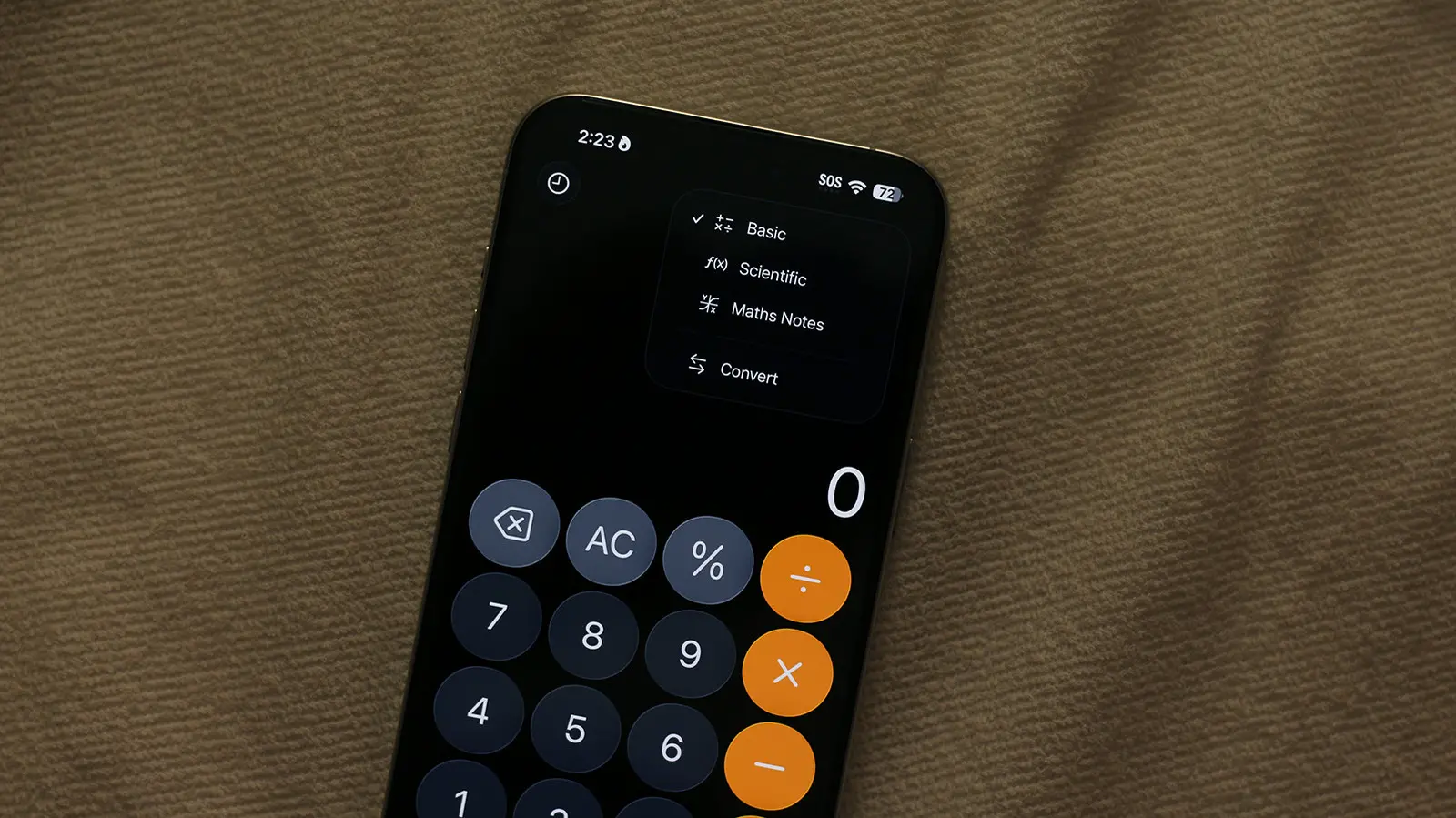
When you open the calculator app, the standard layout shows numbers 0-9, plus minus, multiply, divide, and equals. But tapping the small calculator icon in the top right reveals a menu with options: Basic, Scientific, and Math Notes. Switching to scientific mode unlocks trigonometric functions (sin, cos, tan), logarithms, exponents, and constants like pi and e. The app correctly follows the order of operations (PEMDAS), so you can type complex expressions like "3+42" and get the right result.
One often overlooked feature is the built-in unit and currency converter. To use it, simply type a number and then tap the "Convert" button (the icon looks like a ruler or globe). You can choose from categories like length, weight, temperature, volume, and currency. The conversion rates update automatically when you're online, making it easy to calculate tips in foreign currencies or convert measurements for recipes. Previous calculations are stored in a history panel accessible by swiping down on the display or tapping the clock icon.
Math Notes: A Game-Changer
Introduced with iOS 18 in 2024, Math Notes reimagines how you interact with the calculator. Instead of tapping buttons, you can write equations by hand or type them in a notebook-style interface. The feature is accessible from both the calculator app (by selecting Math Notes mode) and the Notes app itself. Once you create a Math Note, you can add equations using your finger or an Apple Pencil. The moment you write an equals sign, the app solves the expression and displays the result in real time.
What makes Math Notes truly powerful is its ability to handle variables and chained calculations. For example, you can write "x = 5", then on the next line "y = x + 3", and the app will recognize the dependency and compute y = 8. You can even create simple graphs by writing an equation like "y = x^2 + 1" and tapping the graph icon. The graph is interactive—you can pinch to zoom and drag to explore. This makes Math Notes ideal for studying algebra, physics, or finance.
Another impressive capability is handling mixed units and currencies within the same calculation. Suppose you want to add 130 US dollars and 140 Australian dollars. Simply write "130 USD + 140 AUD =" and the app will convert both to a common currency (default is your local currency) and show the total. You can similarly combine feet and meters, pounds and kilograms, or any convertible units. The conversion uses live exchange rates and standard conversion factors.
If the app encounters an expression it cannot solve, it highlights the problematic part with a red dotted line. For example, an incomplete equation or an unknown variable triggers this warning. A blue dotted line appears when the app cannot read your handwriting—for instance, if a number looks ambiguous. Tapping on the blue line lets you redraw the character. This feedback loop helps you correct errors quickly.
How to Use Math Notes Effectively
To get started with Math Notes, open the Calculator app and tap the calculator icon in the top right corner. Select "Math Notes" from the menu. You can also access Math Notes indirectly via the Notes app: create a new note and enable the "Math Results" feature from the keyboard settings. This allows you to type equations in any note and get instant solutions without opening the calculator.
For handwriting, rotate your iPhone to landscape mode for more writing space. Use a stylus or your finger—the app's handwriting recognition is quite accurate, but it works best with clear, separated characters. If you prefer typing, the keyboard includes a dedicated equals button and special math symbols. You can also delete lines by scribbling over them (like a strikethrough gesture).
Math Notes are automatically saved in a dedicated folder within the Notes app. This means you can revisit previous calculations, add new steps, or share them with others. The folder is called "Math Notes" and appears under the main Notes list. You can also export a Math Note as a PDF or image.
Additional Tips and Tricks
Beyond Math Notes, the calculator app has several hidden shortcuts. For example, you can swipe left or right on the display to delete the last digit (instead of tapping the C button). Long-pressing the equals sign shows a history of your recent calculations. And if you enter a value in the basic calculator, tilting your phone to landscape mode automatically switches to scientific mode (on iPhones that support orientation changes).
Another useful feature is the ability to copy the result of a calculation directly. Simply long-press on the number display and tap "Copy". You can also use the "Paste" function to bring a number from your clipboard into the calculator. For quick calculations without opening the app, enable Math Results in Settings > General > Keyboard. With this turned on, you can type something like "4512=" in Messages, Notes, or any text field, and the keyboard will show the result in the QuickType bar above the keys. Tapping that result inserts it into your text.
For frequent travelers, the currency converter is a lifesaver. You can set default currencies by opening the calculator, tapping the convert button, and selecting your preferred base and target currencies. The rates update automatically when you have an internet connection. Similarly, the unit converter supports dozens of categories, from acceleration to volume. If you often need to convert a specific unit (like miles to kilometers), you can pin it as a favorite for quick access.
Power users might appreciate that Math Notes integrates with other iOS features. For instance, you can drag and drop equations from Safari or PDFs into a Math Note. The app also supports system-wide shortcuts like copy-paste and undo gestures. For educators, Math Notes can be used to create interactive lessons—students can write steps and see instant feedback.
It's worth noting that Math Notes requires iOS 18 or later. If you haven't updated, go to Settings > General > Software Update. The feature works on iPhone XS and newer models. Face ID or Touch ID is not required, but you must have enough storage to handle the handwritten data. Apple has optimized the handwriting engine to run on-device, so your calculations remain private and work offline once the conversion rates are cached.
Source: SlashGear News